Are the images positioned prominently and easy to find?
Answer: Sometimes
Score: 1
Notes: *Research assistant turned off at Lambton College
main search page NA
advanced search page: Hamburger menu icon top left. Help, login (My research and language), Selected items, and recent searches at top right; Search button for advanced search is quite far from the entry fields for the advanced search, but hitting enter is all that is required to send a search.
results page: As above; arrow buttons to access AI topic recommendations are left and right of suggested topics (good); thumbs up down for quality of results is next to results tally (good); group cite, email, save, and three dots are at top of results list (good); individual article cite, email, save are at far right of article information (not so good)
item record 1: request button for article is at far right under heading "full text options"...not sure that it can be located;
Item record 2: Download PDF version is beside cite, print, copy URL info (good); Column with "search with indexing terms" has "search" button at far right of column, away from column of subject suggestions (would this be easier to find if under the list, rather than to the right of it?)
Item record 3 Same
help pages: hamburger help (good);
login: NA
create an account pages "create and account" button at bottom of form (good)
search history pages: NA
bookmark pages: NA
Score: 1
Notes: *Research assistant turned off at Lambton College
main search page NA
advanced search page: Hamburger menu icon top left. Help, login (My research and language), Selected items, and recent searches at top right; Search button for advanced search is quite far from the entry fields for the advanced search, but hitting enter is all that is required to send a search.
results page: As above; arrow buttons to access AI topic recommendations are left and right of suggested topics (good); thumbs up down for quality of results is next to results tally (good); group cite, email, save, and three dots are at top of results list (good); individual article cite, email, save are at far right of article information (not so good)
item record 1: request button for article is at far right under heading "full text options"...not sure that it can be located;
Item record 2: Download PDF version is beside cite, print, copy URL info (good); Column with "search with indexing terms" has "search" button at far right of column, away from column of subject suggestions (would this be easier to find if under the list, rather than to the right of it?)
Item record 3 Same
help pages: hamburger help (good);
login: NA
create an account pages "create and account" button at bottom of form (good)
search history pages: NA
bookmark pages: NA
Are there functional images embedded in the background?
Answer: Sometimes
Score: 1
Notes: main search page NA
advanced search page NO
results page NO
item record 1 NO
Item record 2 NO
Item record 3 NO
help pages NO
login YES: image of mail defines where login email goes, lock image defines where password goes, in addition to some placeholder text in each field
create an account pages: NO
search history pages NO
bookmark pages
Score: 1
Notes: main search page NA
advanced search page NO
results page NO
item record 1 NO
Item record 2 NO
Item record 3 NO
help pages NO
login YES: image of mail defines where login email goes, lock image defines where password goes, in addition to some placeholder text in each field
create an account pages: NO
search history pages NO
bookmark pages
Do informative images contain appropriate alt text or an appropriate textual alternative?
Answer: Sometimes
Score: 1
Notes: main search page YES
advanced search page YES
results page YES
item record 1 YES
Item record 2 YES
Item record 3 YES
help pages YES
login YES
create an account pages NO: image of envelope to suggest login field, image of lock to suggest password field.
search history pages YES
bookmark pages
Score: 1
Notes: main search page YES
advanced search page YES
results page YES
item record 1 YES
Item record 2 YES
Item record 3 YES
help pages YES
login YES
create an account pages NO: image of envelope to suggest login field, image of lock to suggest password field.
search history pages YES
bookmark pages
Do functional images contain appropriate alt text or an appropriate textual alternative?
Answer: Not Applicable
Score: -1
Notes: No functional images
Score: -1
Notes: No functional images
Do images used as text contain appropriate alt text or an appropriate textual alternative?
Answer: Not Applicable
Score: -1
Notes: No images used as text.
Score: -1
Notes: No images used as text.
When zoomed in at 200%, is text intact, readable, and not cut off?
Answer: Sometimes
Score: 1
Notes: main search page: at 200 the top right icons disappear, including "help"
advanced search page: at 200 the top right icons disappear
results page: at 200 the filter fields are not on the same page, but there is a link under the tally of search results to open the filter column, and top right icons for help etc disappear
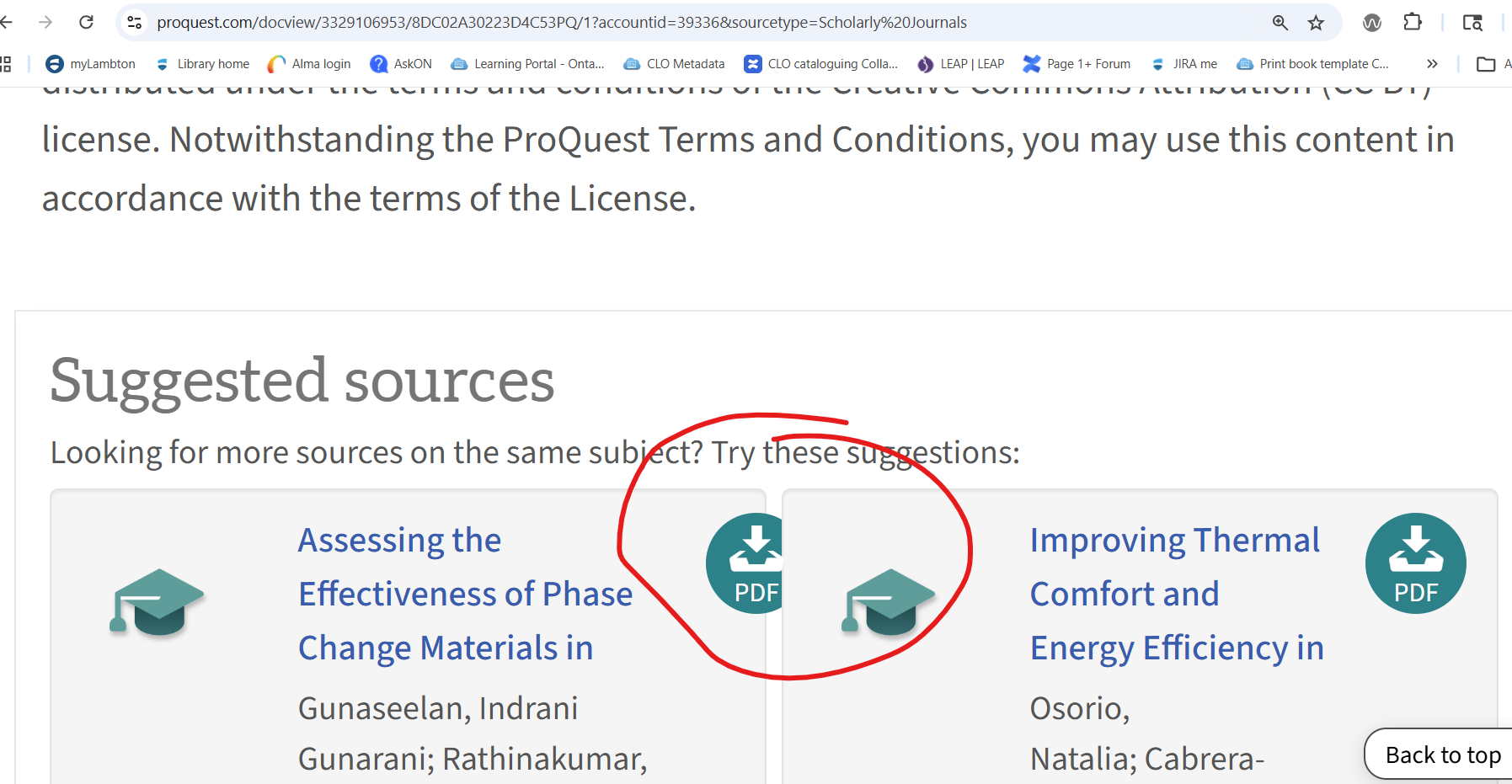
item record 1: suggested sources section overlaps the items, such that the pdf button gets covered by another item; "Search with indexing terms" seems to drop off the page altogether
Item record 2: As above
Item record 3: This time the suggested sources didn't overlap, but the "Search with indexing terms" was still missing at 200%; help, selected items, and My research/language selection icons in top right disappears at 200%
help pages (see above): Not accessible at 200% from article page. If menu accessed at 175%, it disappears when at 200%
login (see above "My research/language selection")
create an account pages: at 200% top right icons disappear
search history pages
bookmark pages
Score: 1
Notes: main search page: at 200 the top right icons disappear, including "help"
advanced search page: at 200 the top right icons disappear
results page: at 200 the filter fields are not on the same page, but there is a link under the tally of search results to open the filter column, and top right icons for help etc disappear
item record 1: suggested sources section overlaps the items, such that the pdf button gets covered by another item; "Search with indexing terms" seems to drop off the page altogether
Item record 2: As above
Item record 3: This time the suggested sources didn't overlap, but the "Search with indexing terms" was still missing at 200%; help, selected items, and My research/language selection icons in top right disappears at 200%
help pages (see above): Not accessible at 200% from article page. If menu accessed at 175%, it disappears when at 200%
login (see above "My research/language selection")
create an account pages: at 200% top right icons disappear
search history pages
bookmark pages
Are images clear and unpixelated at 200%?
Answer: Sometimes
Score: 1
Notes: main search page: NA
advanced search page: NA
results page NA
item record 1 No problem
Item record 2 No problem
Item record 3 No problem
help pages: (Links to help pages disappear altogether at 200%)
login: (Links to help pages disappear altogether at 200%)
create an account pages: (Links to help pages disappear altogether at 200%)
search history pages: (Links to help pages disappear altogether at 200%)
bookmark pages; (Links to help pages disappear altogether at 200%)
Score: 1
Notes: main search page: NA
advanced search page: NA
results page NA
item record 1 No problem
Item record 2 No problem
Item record 3 No problem
help pages: (Links to help pages disappear altogether at 200%)
login: (Links to help pages disappear altogether at 200%)
create an account pages: (Links to help pages disappear altogether at 200%)
search history pages: (Links to help pages disappear altogether at 200%)
bookmark pages; (Links to help pages disappear altogether at 200%)
Is horizontal scrolling minimized at 200%?
Answer: Always
Score: 2
Notes: main search page
advanced search page
results page
item record 1
Item record 2
Item record 3
help pages
login
create an account pages
search history pages
bookmark pages
Score: 2
Notes: main search page
advanced search page
results page
item record 1
Item record 2
Item record 3
help pages
login
create an account pages
search history pages
bookmark pages
Do text and images have a contrast ratio of at least 4.5:1?
Answer: Sometimes
Score: 1
Notes: main search page YES
advanced search page YES
results page Mostly (Wave is picky and says that two images and 50 or so "visually hidden" items are not acceptable...I don't see a real problem here, so I'm going to say it meets contrast ratios) YES
item record 1 YES
Item record 2 YES
Item record 3 YES
help pages YES
login YES
create an account pages No* (Red on white is generally 4:1 which is too low in contrast)
search history pages
bookmark pages
Score: 1
Notes: main search page YES
advanced search page YES
results page Mostly (Wave is picky and says that two images and 50 or so "visually hidden" items are not acceptable...I don't see a real problem here, so I'm going to say it meets contrast ratios) YES
item record 1 YES
Item record 2 YES
Item record 3 YES
help pages YES
login YES
create an account pages No* (Red on white is generally 4:1 which is too low in contrast)
search history pages
bookmark pages
Do colour coded graphs have text equivalents?
Answer: Not Applicable
Score: -1
Notes: No colour coded graphs present in the database.
Score: -1
Notes: No colour coded graphs present in the database.
Are blocks of content separated from one another using visual separation (such as whitespace or borders)?
Answer: Always
Score: 2
Notes: main search page
advanced search page
results page
item record 1
Item record 2
Item record 3
help pages
login
create an account pages
search history pages
bookmark pages
Score: 2
Notes: main search page
advanced search page
results page
item record 1
Item record 2
Item record 3
help pages
login
create an account pages
search history pages
bookmark pages
Are text alternatives provided where colour is used to indicate an action?
Answer: Not Applicable
Score: -1
Notes: Colour is not used to indicate actions.
Score: -1
Notes: Colour is not used to indicate actions.
Using your mouse, is the clickable area around links and buttons large enough for users to see and activate easily?
Answer: Always
Score: 2
Notes: main search page Yes
advanced search page Yes
results page: Yes
item record 1
Item record 2
Item record 3
help pages
login
create an account pages
search history pages
bookmark pages
Score: 2
Notes: main search page Yes
advanced search page Yes
results page: Yes
item record 1
Item record 2
Item record 3
help pages
login
create an account pages
search history pages
bookmark pages
Using your mouse to test links, are links and buttons far enough apart for users to accurately activate?
Answer: Always
Score: 2
Notes: main search page
advanced search page
results page
item record 1
Item record 2
Item record 3
help pages
login
create an account pages
search history pages
bookmark pages
Score: 2
Notes: main search page
advanced search page
results page
item record 1
Item record 2
Item record 3
help pages
login
create an account pages
search history pages
bookmark pages
Using any method to test links, are all links and buttons functional (i.e., not dead)?
Answer: Always
Score: 2
Notes: main search page
advanced search page
results page
item record 1
Item record 2
Item record 3
help pages
login
create an account pages
search history pages
bookmark pages
Score: 2
Notes: main search page
advanced search page
results page
item record 1
Item record 2
Item record 3
help pages
login
create an account pages
search history pages
bookmark pages
Can users pause carousel movement?
Answer: Always
Score: 2
Notes: main search page NA
advanced search page NA
results page: Yes Carousel of AI keyword suggestions only moves if user clicks arrow keys
item record 1 NA
Item record 2
Item record 3
help pages
login
create an account pages
search history pages
bookmark pages
Score: 2
Notes: main search page NA
advanced search page NA
results page: Yes Carousel of AI keyword suggestions only moves if user clicks arrow keys
item record 1 NA
Item record 2
Item record 3
help pages
login
create an account pages
search history pages
bookmark pages
Is all functionality, including navigating between carousel items, operable by keyboard?
Answer: Always
Score: 2
Notes: Item record 3
help pages
login
create an account pages
search history pages
bookmark pages
Score: 2
Notes: Item record 3
help pages
login
create an account pages
search history pages
bookmark pages
Is the order of the text preserved at all screen resolutions, without overlap?
Answer: Sometimes
Score: 1
Notes: Icons for "my research", "selected items", "recent searches" are put into the hamburger menu in lieu of left on the main pane for small phone resolutions. The "help and support" button at the top right of the full screen on a monitor opens the "resource center", which is not quite the same as the links in the hamburger menu for "help" and "support center"
Score: 1
Notes: Icons for "my research", "selected items", "recent searches" are put into the hamburger menu in lieu of left on the main pane for small phone resolutions. The "help and support" button at the top right of the full screen on a monitor opens the "resource center", which is not quite the same as the links in the hamburger menu for "help" and "support center"
Do images avoid overlapping at all screen resolutions?
Answer: Always
Score: 2
Notes: main search page
advanced search page
results page
item record 1
Item record 2
Item record 3
help pages
login
create an account pages
search history pages
bookmark pages
Score: 2
Notes: main search page
advanced search page
results page
item record 1
Item record 2
Item record 3
help pages
login
create an account pages
search history pages
bookmark pages
Is the overall reading experience preserved at all screen resolutions?
Answer: Sometimes
Score: 1
Notes: iPad Pro item record page, the footer section cuts off the logo for Clarivate.
Icons for "my research", "selected items", "recent searches" are put into the hamburger menu in lieu of left on the main pane for small phone resolutions. The "help and support" button at the top right of the full screen on a monitor opens the "resource center", which is not quite the same as the links in the hamburger menu for "help" and "support center"
The function buttons on the result screen (cite, email, save, export) are not in the same place on a small device such as a Pixel 7. For a Pixel the "cite" action appears at the base of the screen as a kind of window on top of the window, together with the "filter" and three dots option, which opens another pop over window with cite, email, file and export options (more comprehensive).
This means that the information is preserved but not accessed exactly the same way on all devices.
Score: 1
Notes: iPad Pro item record page, the footer section cuts off the logo for Clarivate.
Icons for "my research", "selected items", "recent searches" are put into the hamburger menu in lieu of left on the main pane for small phone resolutions. The "help and support" button at the top right of the full screen on a monitor opens the "resource center", which is not quite the same as the links in the hamburger menu for "help" and "support center"
The function buttons on the result screen (cite, email, save, export) are not in the same place on a small device such as a Pixel 7. For a Pixel the "cite" action appears at the base of the screen as a kind of window on top of the window, together with the "filter" and three dots option, which opens another pop over window with cite, email, file and export options (more comprehensive).
This means that the information is preserved but not accessed exactly the same way on all devices.