Database A-Z LibGuide Integration

Contents

  1. Overview
  2. Integration Implementation
    1. Map Resources in Database A-Z to LEAP Resources
    2. Add LEAP Scores as Flags in Your LibGuide
    3. Add a Legend Explaining the Scores

Overview

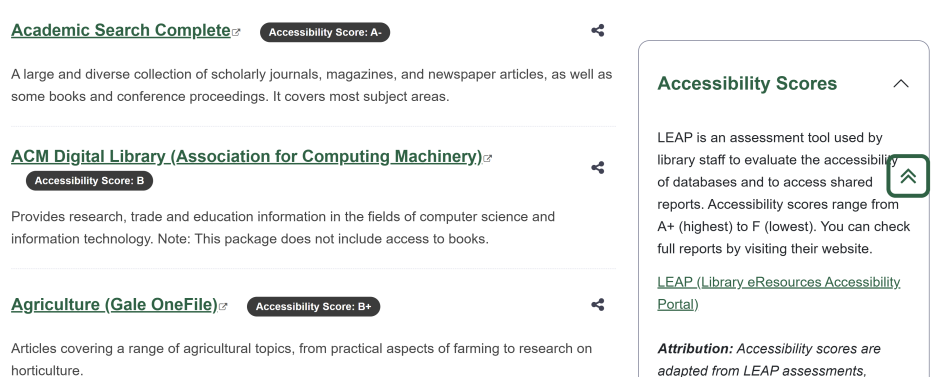
LEAP LibGuide integrations that place LEAP scores next to database records in college A-Z Database lists have been developed by Algonquin College and George Brown Polytechnic. This allows users looking at resources in the Database A-Z to get a sense of the database's overall accessibility and directs users to view the full accessibility assessment report to learn more about the database's accessibility features. 

To check out these integrations in action, please see Algonquin's Database A-Z and George Brown's A-Z Databases.

Algonquin's Database A-Z with LEAP scores next to database names


George Brown's Database A-Z list with LEAP accessibility scores next to database descriptions


Integration Implementation

If you are interested in implementing this integration at your own institution, please refer to the guidance below, developed by Algonquin College.

If you have any questions about these instructions, please reach out to Raghav Bali or Lindsey Schulz at Algonquin.

Step 1: Map Resources in Database A-Z to LEAP Resources

Starting with a list of databases in your A-Z, search the LEAP Assessment Index for the corresponding assessment and note down the LEAP score for each database. 

This list will be used to add the score next to the database in you LibGuide.

Step 2: Add LEAP Scores as Flags in Your LibGuide

  1. Open LibGuides.
  2. Go to Admin.
  3. Open Look and Feel (new).
  4. Click on A-Z Databases to expand the list.
  5. Select Settings, then click Metadata.
  6. Select Flags from the top navigation bar.
  7. Press the + Add Flag button on the top right side.
  8. Name the flag and choose its colour. Note: Refer to the WCAG Color Contrast Checker when choosing a colour to ensure it meets colour contrast requirements.
  9. Click Add
  10. Repeat steps 6 to 9 for each LEAP score you want to add.
  11. Go back to the Main Database List from the left-hand side menu bar.
  12. Click the three dots (kebab) button next to the database you want to add the flag to and select Edit Item
  13. Scroll down to the Flags section and select the relevant flag.
  14. Scroll back to the top of the menu and select Save.
  15. Refresh your A-Z public page to view changes.
  16. Repeat steps 10 to 15 for each database you want to add a LEAP score for.

Step 3: Add a Legend Explaining the Scores

  1. Create a subject guide. Note: You can keep this page private
  2. Add a content box; include a brief description of LEAP and what the scores mean. For example:

  1. Go back to LibGuides 
  2. Open Admin > Look and Feel (new)
  3. Select Main Database List from the left-hand side menu bar. 
  4. Select Settings and click on Public A-Z Page
  5. Click on Sidebar
  6. Under Content Modules, select + Add Custom Content Module
  7. Select the Subject Guide and the applicable Content Box from the menu. 
  8.  Scroll back to the top of the menu and select Save. At this stage you can choose whether the box appears expanded or collapsed as the page loads
  9. Scroll to the bottom and select Save Changes
  10. Refresh you’re A-Z Public Page to view changes
  11. Hit Save. Choose whether you want to expanded or collapsed when the page loads.