
The following instructions will walk you through how to add LEAP scores as icons in the database description in your library's Database A-Z list. If you have any questions about these instructions, please reach out to Sarah Wiebe, Systems Librarian, at George Brown Polytechnic.
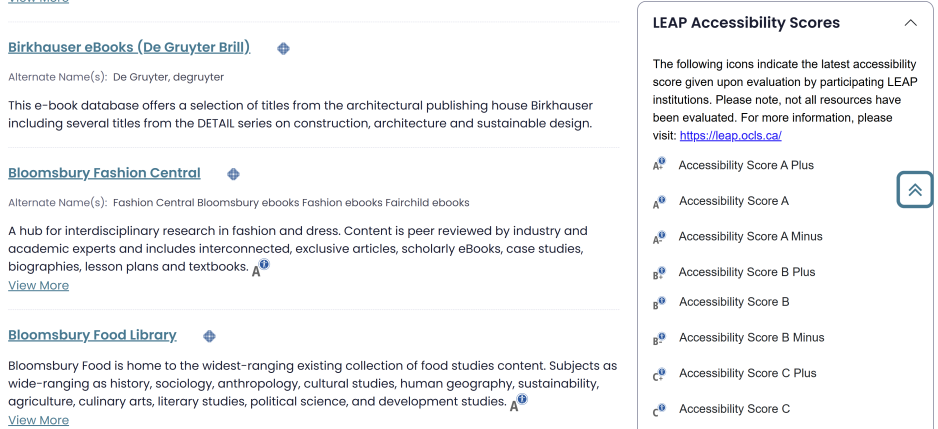
Step 1: Map Resources in Database A-Z to LEAP Resources
Identify which databases will have which LEAP icon using the LEAP Assessment Index.
This list will be used to add the icon to the database description field in you’re a-Z list.
Step 2: Download LEAP Icons
Download the ZIP file from the LEAP Service page in Confluence.
Step 3: Upload your LEAP Icons to your Image Library
- Open LibGuides.
- Go to Content.
- Go to Image Manager.
- Choose the Shared Library:
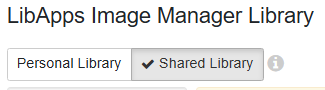
- If you wish, you can create a new folder to hold your LEAP icons.
- Select Upload New Image and choose an icon to upload.

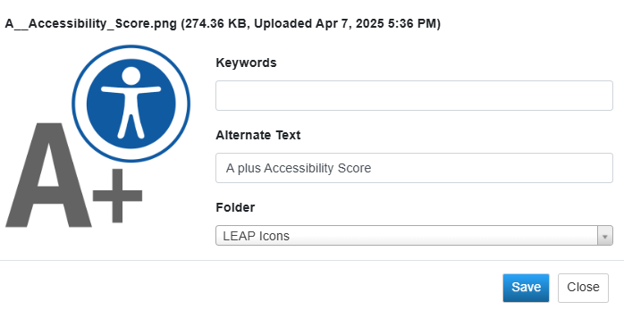
- After you upload your icons, make sure you add in the alternate text and then click Save:
- After you upload your icons, open Notepad on your computer.
- Copy the text at this link into Notepad or another text editor.
- Navigate back to the Image Library, and navigate to your uploaded LEAP report.
- Click on the chain link icon to get the URL for a LEAP Icon:
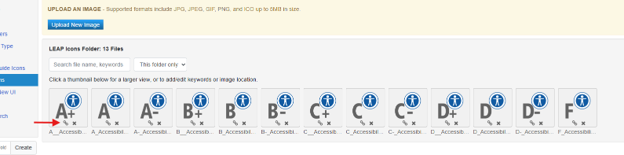
- Copy the resulting URL:
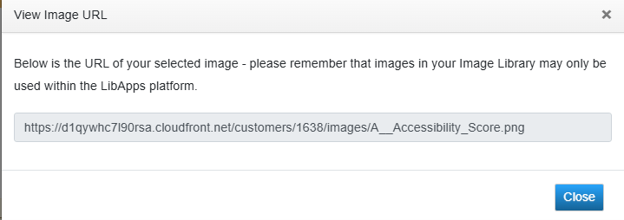
- Paste the URL into your Notepad HTML document:
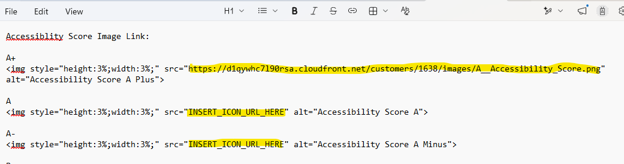
- Do this until all the icon URLs have been filled in.
Step 4: Add the Icons
- Open LibGuides.
- Go to Content.
- Open A-Z List Management (new).
- Either search each database independently or go in list order.
- Choose a database and click on the three dots menu:

- Select Edit Item in the menu:

- Navigate to the Database Description field:
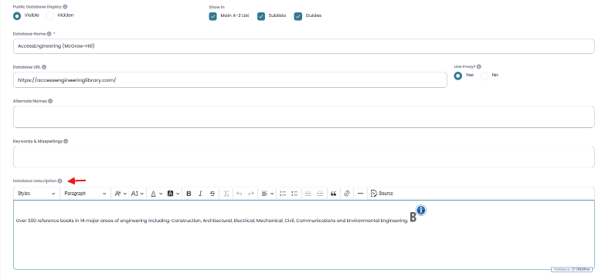
- Click on the Source icon:
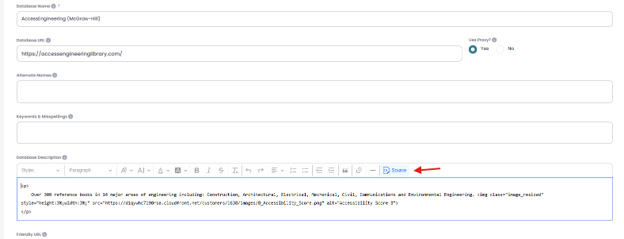
- Copy and paste the corresponding LEAP icon HTML (only the part from your HTML Notepad into the Database Description:
A+
<img style="height:3%;width:3%;" src="https://thelinkhereshouldbeyours.com/1638/images/A__Accessibility_Score.png" alt="Accessibility Score A Plus"> xc
Only copy the highlighted part. The A+ is just a title.
- Your Database Description will look like this:

- Scroll back to the top of the screen and select Save.
- Refresh your A-Z public page to view changes.
- Repeat steps 15 to 26 for each database you want to add a LEAP score for.
Step 5: Add a Legend Explaining the Scores
- Create a subject guide. Note: You can keep this page private
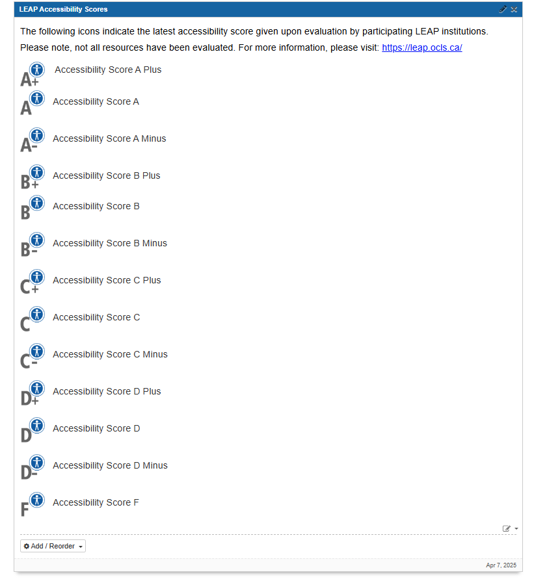
- Add a content box; include a brief description of LEAP and what the LEAP icons mean. Remember the title of this content box. Example:
- Go back to LibGuides
- Open Admin > Look and Feel (new)
- Select Main Database List from the left-hand side menu bar.
- Select Settings and click on Public A-Z Page
- Click on Sidebar
- Under Content Modules, select + Add Custom Content Module
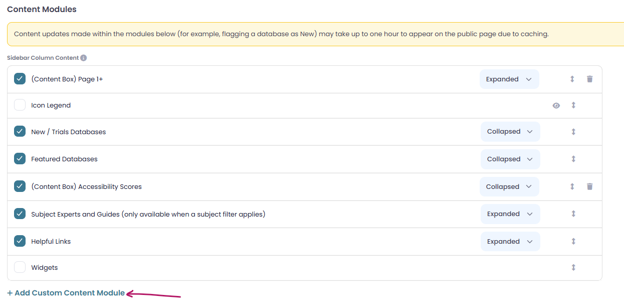
- Select the Subject Guide and the applicable Content Box from the menu.
- Scroll back to the top of the menu and select Save. At this stage, you can choose whether the box appears expanded or collapsed as the page loads.
- Scroll to the bottom and select Save Changes.
- Refresh your A-Z Public Page to view changes.